
Appearance
Manage Your Catalog
The IIMMPACT Dashboard gives you full control over how your product catalog is organized and what your users see. You can create custom groups, arrange products into categories, reorder them, and control which products are visible.
Browsing Your Catalog
Use the group pills at the top of the catalog page to quickly filter by group. Click a pill to see only the products in that group, or click All to see everything.
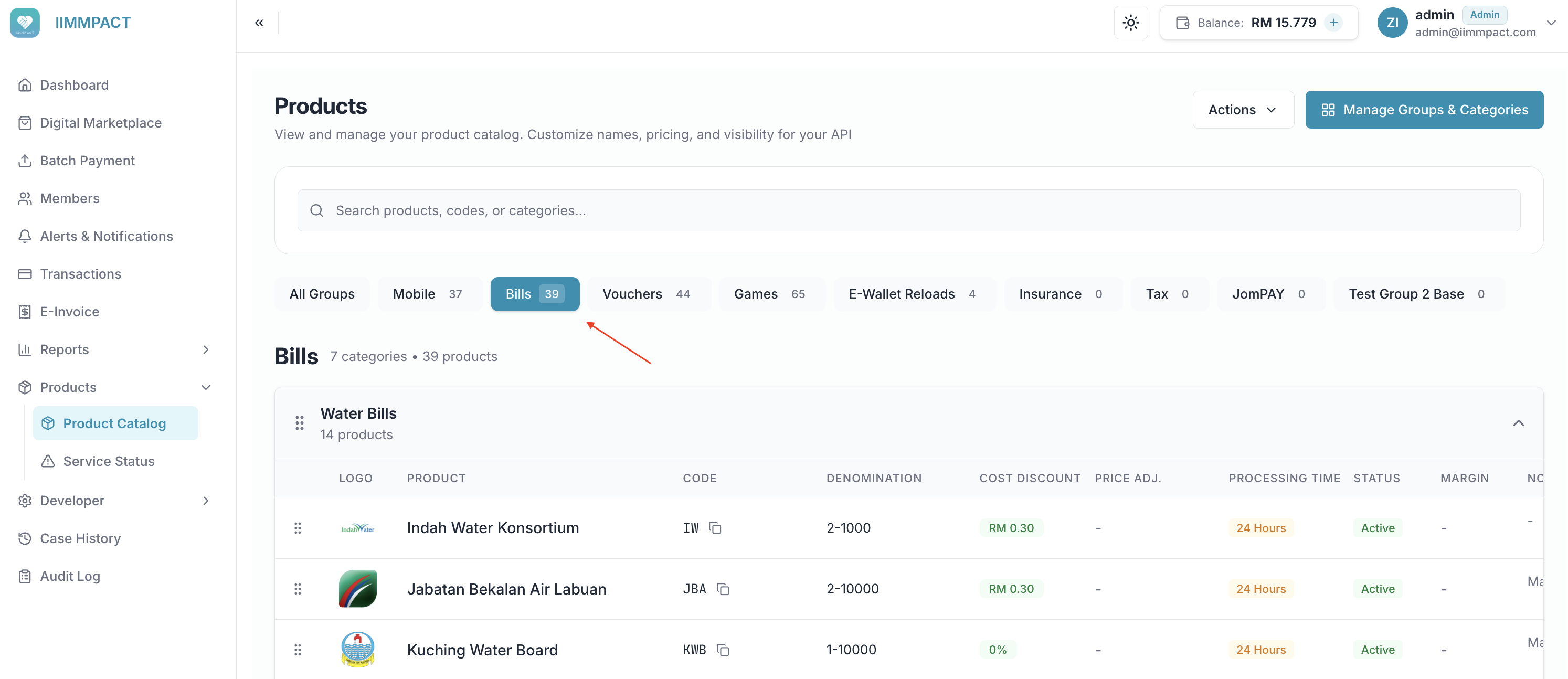
Groups
Groups are the top-level sections of your catalog — for example, "Mobile", "Bills", or "Gaming". You can also create custom groups like "Popular" or "Promos" to highlight specific products.
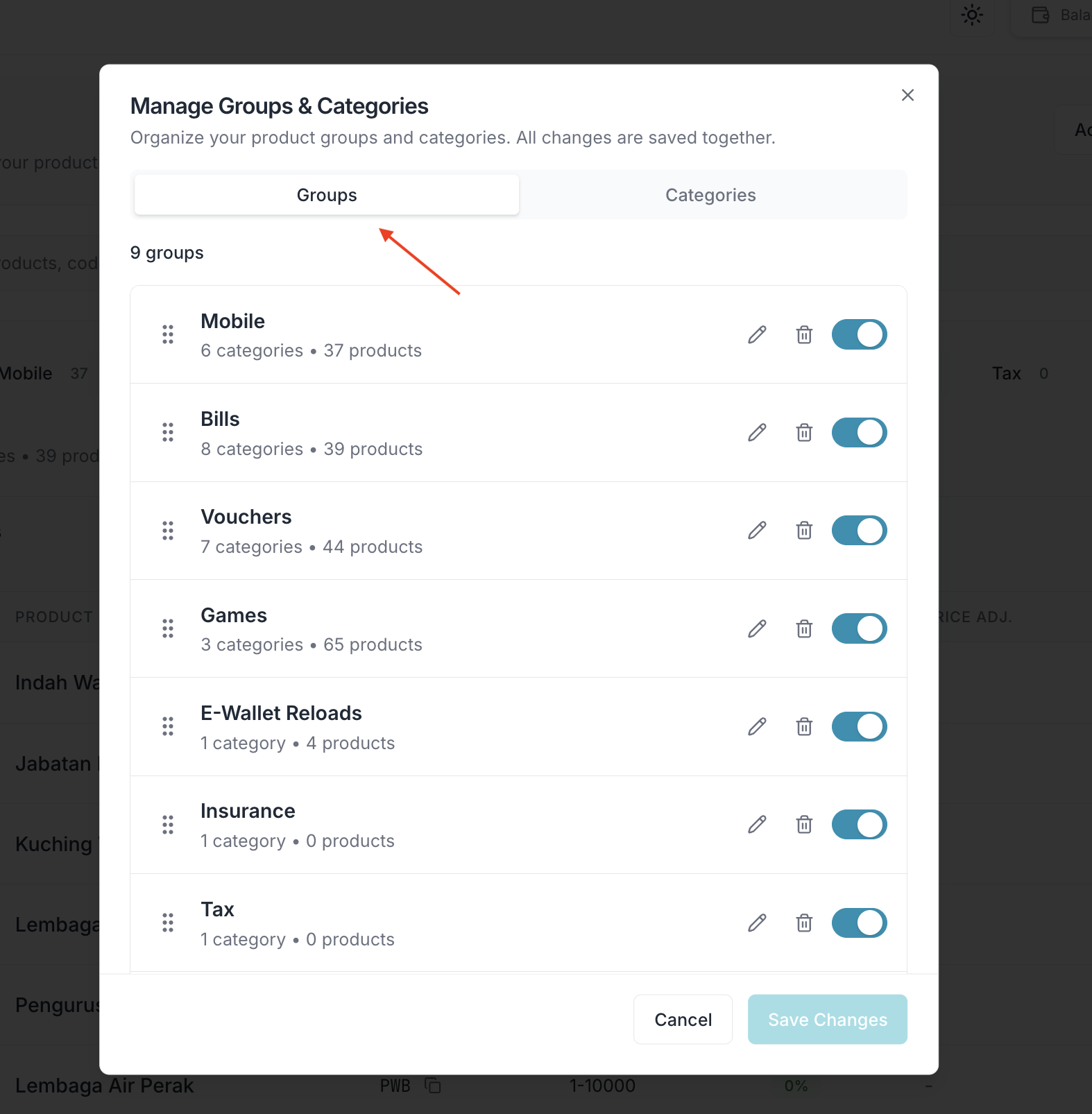
Click Manage Groups & Categories in the top-right corner to open the management panel. From this panel, you can:
- Create custom groups with your own names
- Reorder groups to control the display order
- Remove groups you no longer need
Categories
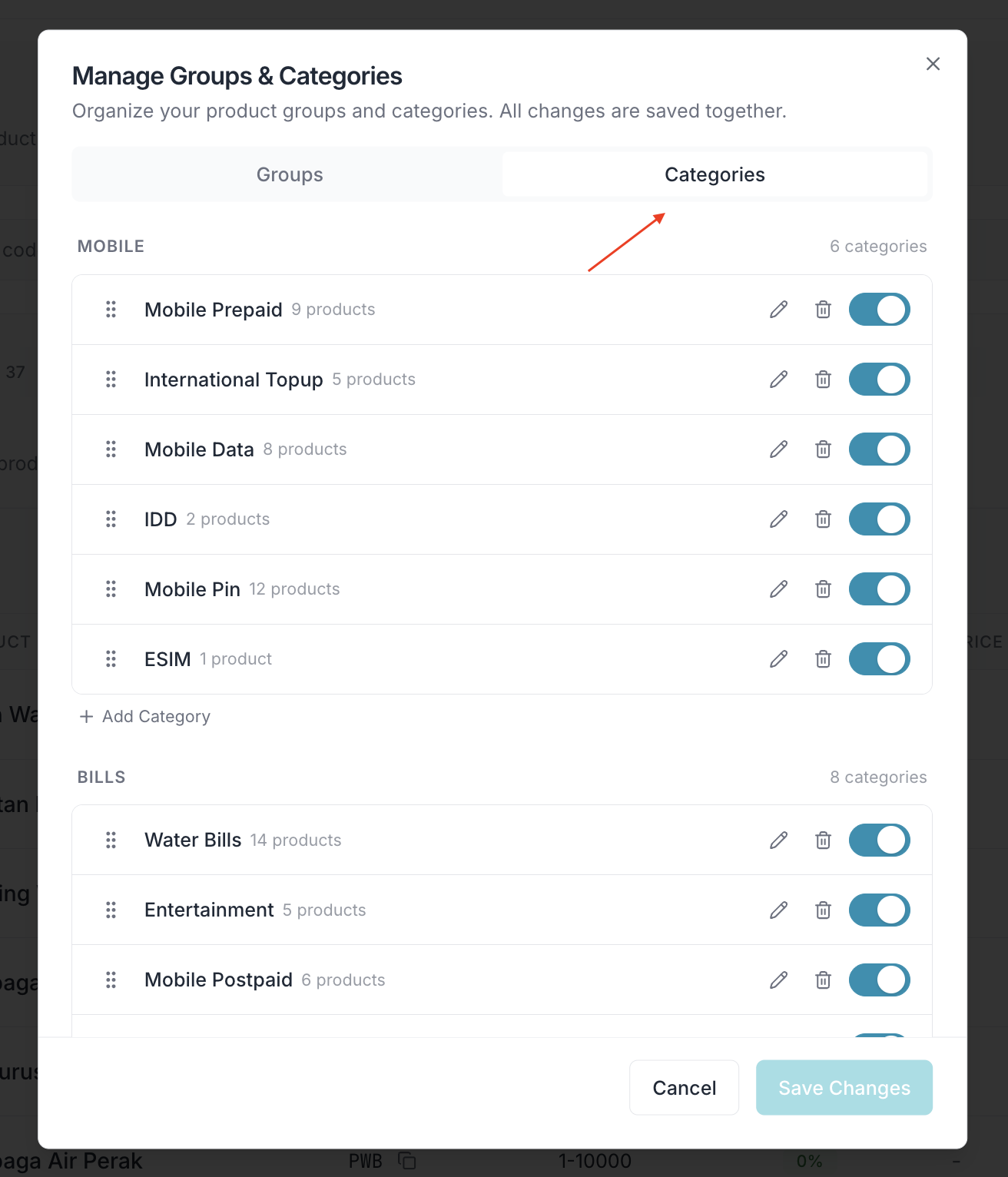
Categories sit within groups and further organize your products. For example, under the "Mobile" group, you might have categories like "Prepaid Reload" and "Internet Plans". From the same management panel, you can:
- Create custom categories within any group
- Assign products to categories
- Reorder categories within a group
Product Visibility
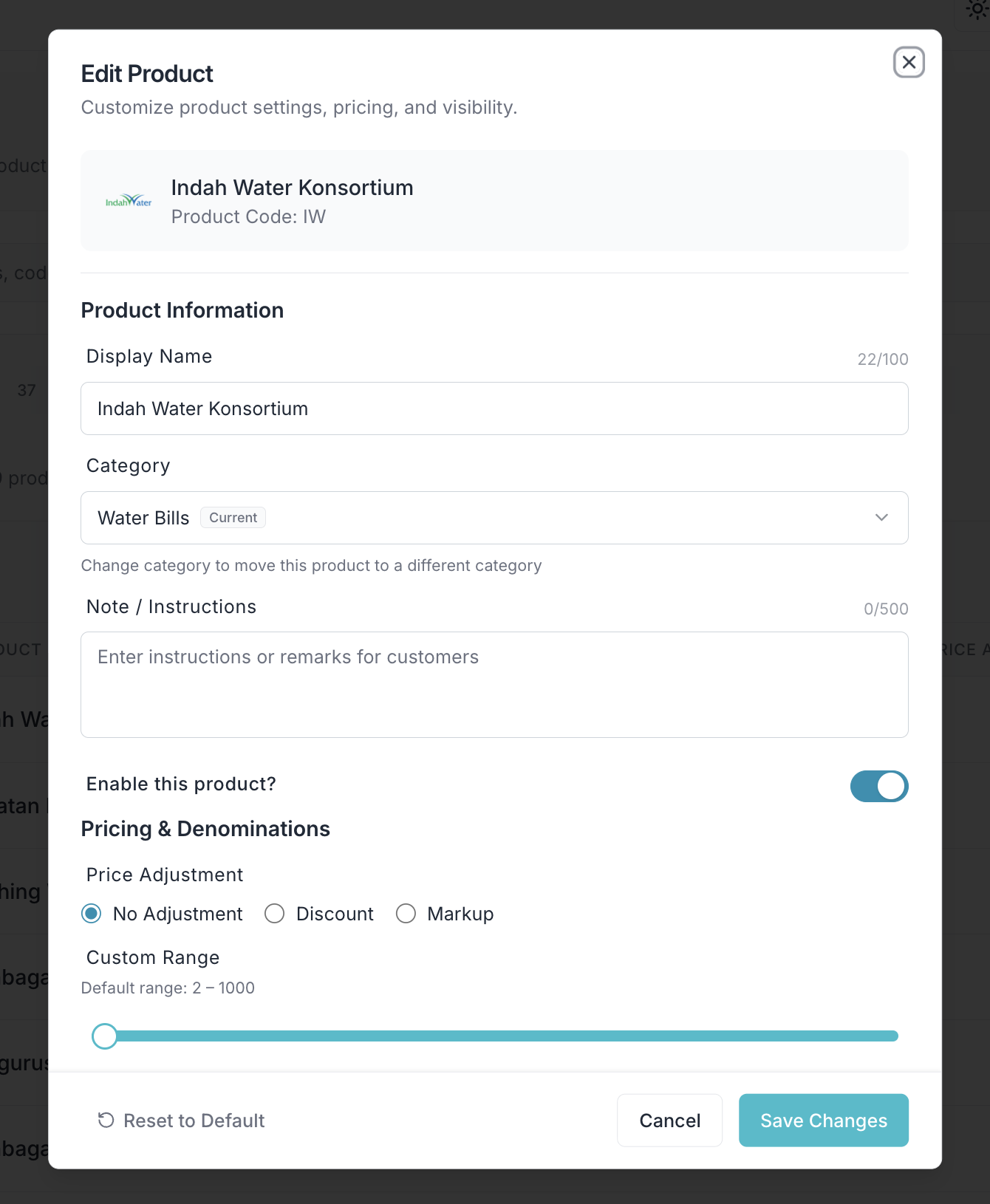
You control which products appear in your catalog. Click on a product to open its settings.
| Setting | Description |
|---|---|
| Enable / Disable | Toggle products on or off. Disabled products are excluded from your catalog. |
| Hidden Products | Some products are hidden by default. These are excluded unless you explicitly include them. |
| New Products | When IIMMPACT adds a new product, it appears in your catalog automatically. You can disable it if you don't want to offer it. |
| Restricted Products | Products your account is not allowed to purchase never appear in your catalog or options. |
Denomination Customization
Beyond enabling or disabling entire products, you can also customize which denominations are available for each product.
Fixed Denominations
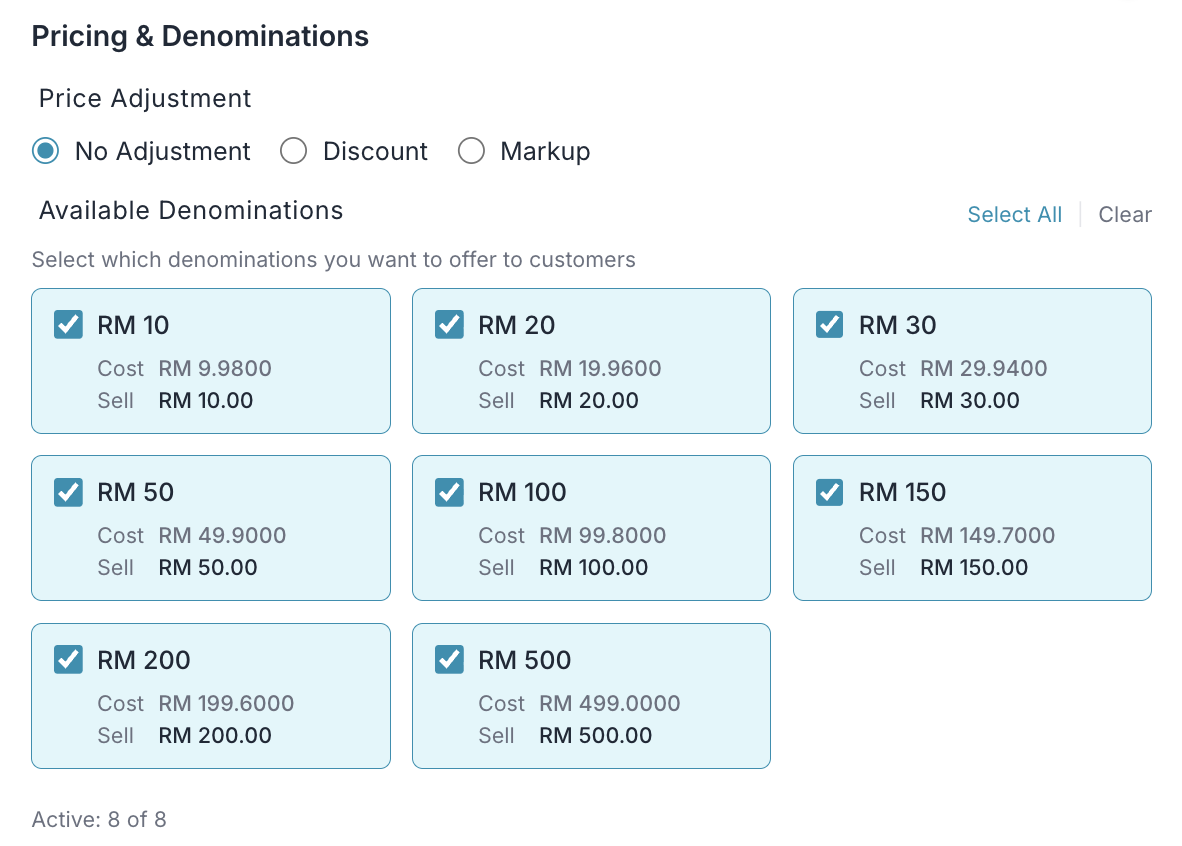
For products with fixed denominations (e.g., RM 5, 10, 30, 50, 100), you can select which ones to offer. Open a product and use the checkboxes to turn individual denominations on or off.
Amount Ranges
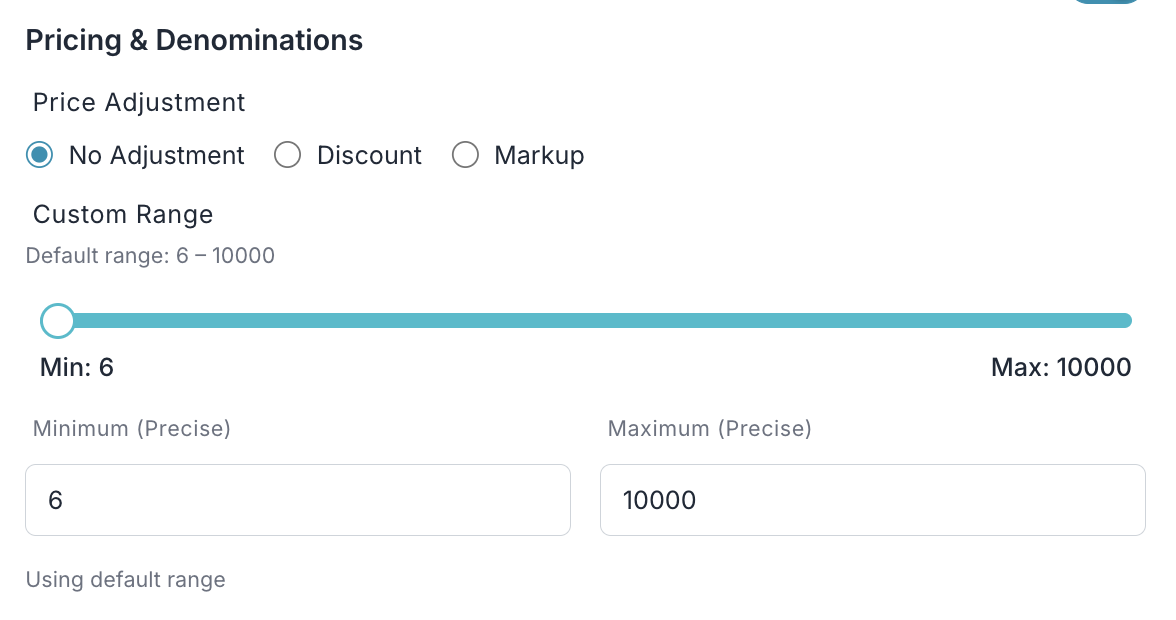
For products where the customer enters a custom amount (e.g., bill payments), you can narrow the allowed range. Open a product and adjust the minimum and maximum amount to set your own limits within the default range.
INFO
Denomination customization is not available for all product types. For products where denominations are determined dynamically (e.g., based on the customer's account), the options are managed by IIMMPACT and cannot be toggled individually.
How Edits Are Applied
- Only what you change is saved. Editing a product leaves the settings you didn't touch as they were. Clearing a price adjustment or an amount range returns it to the standard catalog value. A price adjustment's type and value are always saved together.
- Option changes keep what you didn't touch. Hiding or showing an option, or changing its order, keeps its label, description and price as they were. Setting a label, description, order or visibility back to the standard value reverts it to the standard catalog.
- New groups and categories keep your first settings. If you create a custom group or category as disabled, or with an icon, it is saved that way from the start.
- Resetting a product removes your customizations and immediately restores the product's options to the standard catalog values.
Bulk Edit
To update multiple products at once, use the Bulk Edit feature. Click the Bulk Edit button in the top-right corner to download a template, make your changes in the spreadsheet, and upload it back.
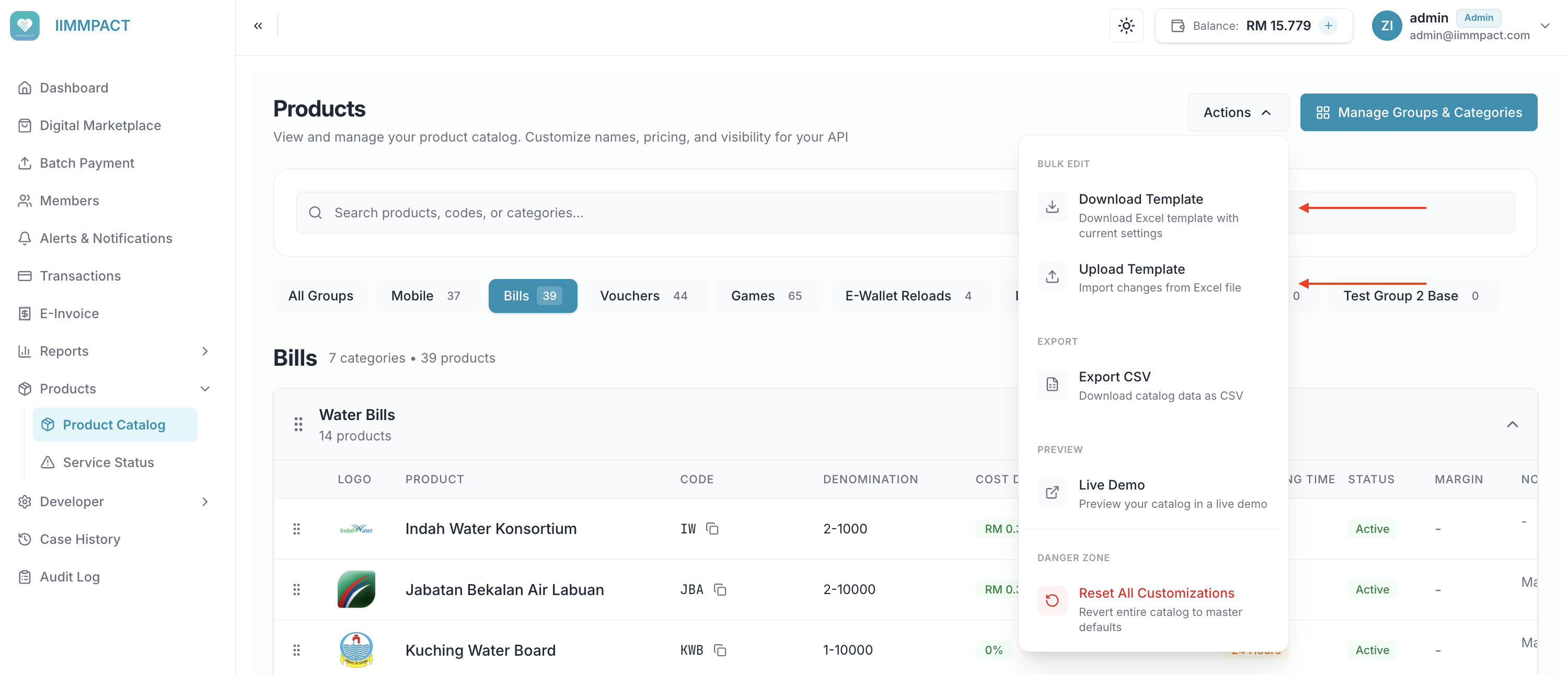
Bulk edit saves products individually and can partially succeed. Review the reported failures and refresh the catalog after saving.
Export
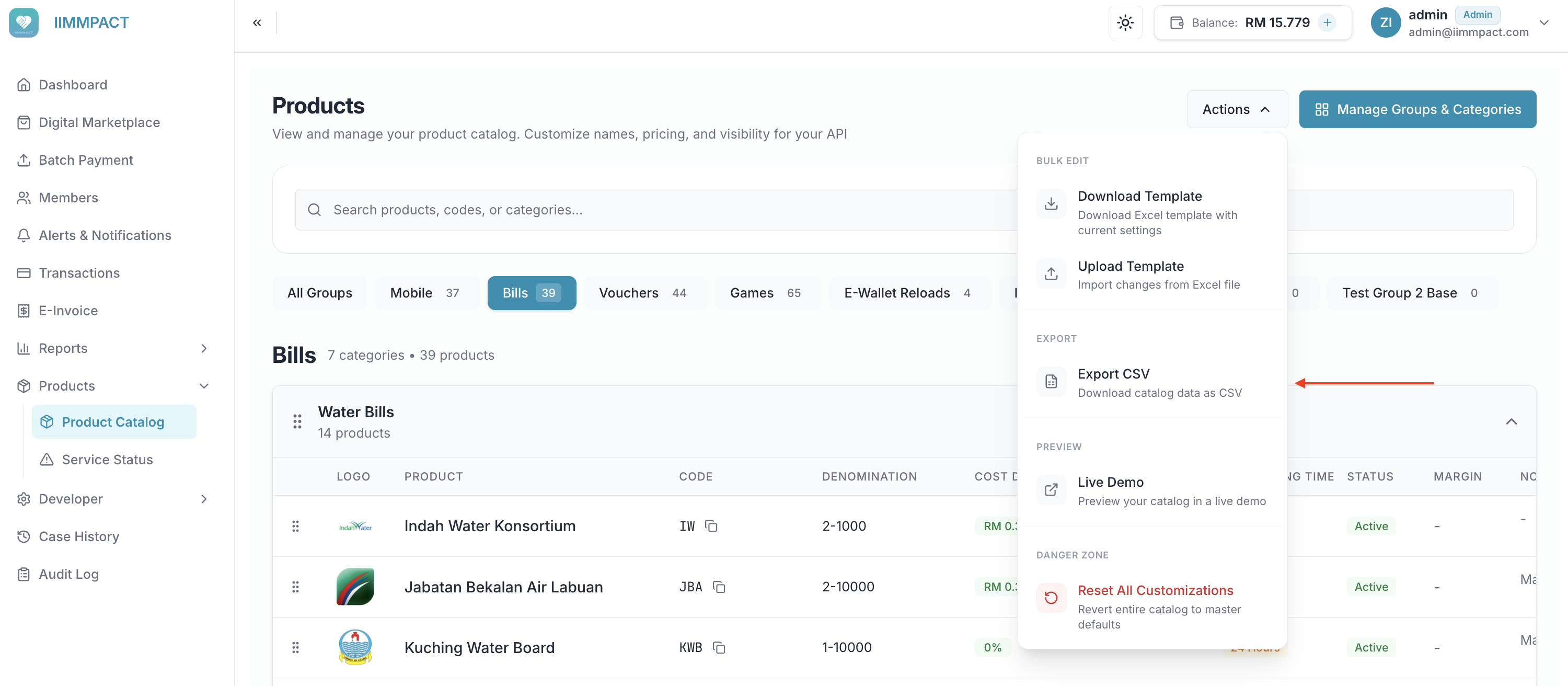
Click Download CSV to export your full catalog as a spreadsheet. This is useful for offline review, sharing with your team, or keeping a record of your current configuration.
Instant Updates
Changes you make in the Dashboard take effect immediately. Your app will receive the updated catalog on its next fetch. If you've set up webhooks, your backend is notified automatically.
What's Next
- Pricing — Understand your costs and set your margins
- Catalog Webhooks — Get notified when your catalog changes
- Catalog API Reference — Technical documentation for your development team